(Changes apply to Connect 12 – 12.1.5)
Enhanced Audio/Video Experience
Adobe Connect 12 introduces an entirely new Enhanced Audio/Video Experience. Adobe Connect’s backend media server infrastructure has been upgraded to a modern cloud-native technology stack optimized for delivering a highly scalable and reliable high-quality audio and video experience for users joining from any device.
The Enhanced Audio/Video experience is now the default experience for all existing and newly created rooms. Here are the various capabilities and improvements available in the new Enhanced Audio/Video Experience.
ENHANCED AUDIO/VIDEO EXPERIENCE with NEW CAPABILITIES
- Richer Audio: Enhanced Audio/Video Experience significantly improvements in audio clarity, speed, and reliability with reduced latency.
- 1080p webcam resolution support: For a single video turned on in the Video pod the maximum supported resolution with Enhanced Audio/Video experience is 1080p. Hosts can select a new ‘Full HD (1080p)’ option from the Video preferences in their Adobe Connect rooms.
- Support for up to three high-resolution (720p) webcams in the Video pod: The display will auto-adjust to a lower resolution if more than three webcams are turned on.
- Single Speaker View: A new video layout option has been added to the Video pod to display a single video at a time. When selected, a host can choose the video to be displayed in Single Speaker view from the Attendees who have turned on their webcams.
- Spotlight Speaker: A new Spotlight Speaker mode is now available when using ‘Filmstrip view’ and ‘Single Speaker view’ in the Video pod. When enabled, the main video will automatically switch to show the video of the person currently speaking.
- Video Limit and Pagination Support: The Video pod can now show up to a maximum of 50 videos in a room. If the number of active videos in the Video pod goes beyond 25, then additional pages of 25 videos each will be created (up to a total of 50 videos or 2 pages).
- Screen share support from browsers: Hosts and Presenters joining from browsers in the Enhanced Audio/Video Experience enabled rooms will be able to share their screen without requiring the Adobe Connect desktop application. However, the mini-control panel will not be available when screen sharing from a browser. Account Administrators can disable screen sharing from a browser from the Compliance and Control settings in Adobe Connect Central.
- Server-based MP4 recordings: When a session is recorded in an Enhanced Audio/Video Experience enabled room, an MP4 version of the recording is automatically created and is available shortly after the meeting recording is stopped. The recordings created are not available in an interactive format. For more information on these, see Mp4 recordings vs Interactive recordings.
- Anonymization in Recordings: Hosts can choose to anonymize attendee names in the Attendee, Chat, and Q&A pods and replace them with anonymous labels in a recording. Hosts can access this option by visiting the meeting room in Adobe Connect Central > Edit Information. Hosts can select the anonymization option for all recordings of a room, or they can select this option for each time a recording is started in a room.

- A new account-wide option has been added to anonymize all recordings by default. This option will not have an impact on existing rooms, only newly created rooms. Also, hosts can still override this option for their rooms.

ENHANCED AUDIO/VIDEO RECORDINGS
- Enhanced Audio/Video recordings now support Closed Captions including:
- Moving and resizing the caption display while viewing the recording
- Choosing font size and text/background color combination
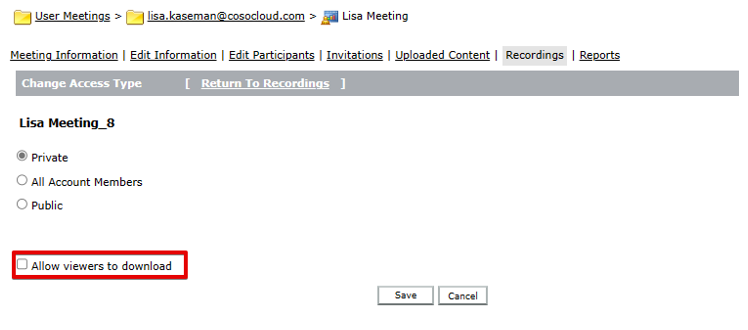
- A new setting is now available to hosts to prevent recording downloads by viewers. This setting can be set for each recording separately.
- Go to the meeting in Connect Central > Recordings > Access Type
ENFORCE ENHANCED AUDIO/VIDEO EXPERIENCE OR STANDARD VIEW
Account administrators can either force enable/disable Enhanced Audio/Video Experience for all rooms or let the hosts decide individually for each room.

SWITCH EXISTING ROOMS
Account administrators can also switch all existing rooms to the Enhanced Audio/Video Experience or the Standard View. This option is only visible when the ‘Application and browser interface settings’ is set to Let the hosts decide for their room.
This option is available under Compliance and Control > Advanced Settings

EASE OF USE EXPERIENCE
Adobe Connect 12.0 introduces improvements to many commonly used workflows to enhance ease of use for all users. Here are the workflows which have been improved in this release:
LOGIN AND JOINING
- The login page has been redesigned to improve joining as a registered or guest user.
- The preferred mode of joining an Adobe Connect room is via the Adobe Connect desktop application. If the Adobe Connect desktop application is installed on the user’s device, the login screen will open in the desktop application (if the user is not already logged in). If the user is already logged in to the desktop application, then the user is taken directly to the Adobe Connect room (without having to login again). If the desktop application is not installed on the user’s device, the login screen and the meeting room will launch in the browser.
NEW SETUP SCREEN ON ENTRY FOR SPEAKER, MICROPHONE, AND CAMERA SELECTION
- After successfully logging in, users are taken to a new setup screen before joining the Adobe Connect room. The user can see the currently selected speaker, microphone, and camera from the setup screen. Users can change the selection, mute/unmute, and test their speaker, microphone, and camera choice before joining the Adobe Connect room.

IN-MEETING SPEAKER, MICROPHONE, AND CAMERA SELECTION
- The in-meeting speaker, microphone, and camera menus are more powerful and easier to use.

VIDEO POD IMPROVEMENTS
- The design and layout of the Video pod have been optimized to support up to 50 cameras (25-per-page).
- The ‘start camera’ and ‘camera preview’ options have been moved from the Video pod to the webcam menu in the room menu bar.
- The design of the Video pod has been overhauled to give more space to the video. Camera actions (pause camera, stop sharing, etc.) have been moved to the video menu.
- In full-screen mode, a black background color is used instead of gray.
- The new Video pod improvements are available only in Enhanced Audio/Video Experience enabled rooms.
EXIT ROOM
Hosts now have two options in the room menu bar for exiting an Adobe Connect room – ‘Exit Room’ and ‘End session for all’.

Participants and Presenters now see an ‘Exit Room’ icon in the menu bar.
RAISE HAND IMPROVEMENTS
- Raised hand notifications shown to hosts have been improved to let them grant or deny microphone rights to participants who have raised their hands.

MOBILE and browser ACCESS
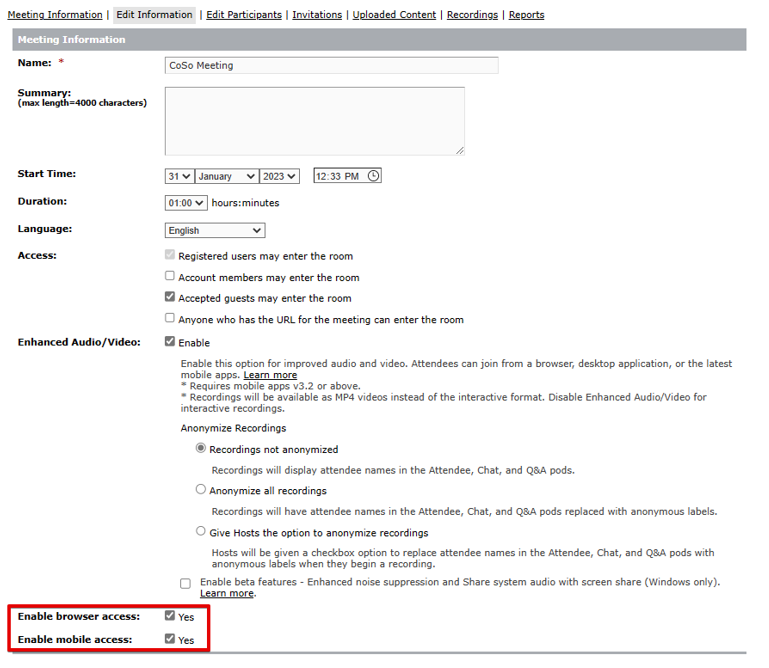
- Hosts can now restrict mobile and browser users from joining Adobe Connect meeting rooms. To enable browser and mobile access, locate the meeting room in Adobe Connect Central > edit information.
POOR NETWORK QUALITY DETECTION
- When poor network quality is detected, a new prompt to pause incoming cameras will be shown to the users. The prompt will only be displayed in Enhanced Audio/Video Experience enabled rooms.
DIAGNOSTIC TEST PAGE
- The Adobe Connect diagnostic test page has been updated to allow users to test connectivity to Standard and Enhanced Audio/Video enabled rooms.
- The diagnostic test page will check the user’s browser, operating system, reachability to Adobe Connect servers and data connectivity with Adobe Connect servers.
- A successful test will indicate that the user will be able to join rooms with either Enhanced Audio/Video enabled or disabled
- Diagnostic Test Link: https://[your_server_name]/common/help/en/support/meeting_test.htm
CHROME OS SUPPORT
- Chromebook users can join Adobe Connect sessions through supported browsers and share their screen if allowed.
CLASSIC VIEW END OF LIFE (EOL)
The option to access an Adobe Connect room with Classic View has been removed from all room launch workflows. With the release of Adobe Connect 12, users cannot join any Adobe Connect rooms with Classic View.
OTHER ENHANCEMENTS AND CHANGES
- To improve audio and video performance for larger sessions (with more than 200 attendees), a new High-performance option is present in the Room setup screen for Concurrent User license customers who have purchased over 200 concurrent seats.
- To improve the overall experience, these limits have been introduced in Enhanced A/V rooms (these could be relaxed in upcoming releases). The limit is based on the number of attendees in the room and the number of attendees with a connected mic or camera. Hosts will see notifications when 80% or 100% of the limit is reached. Once the limit is reached any new attendees will not be able to enter the room and existing attendees (who have not connected their mic or camera) will not be able to connect their mic or camera unless hosts disconnect the mic/camera of one or more attendees who have already presented from the Attendee pod.
- For rooms with 100 attendees present, up to 100 simultaneous mic/camera connections are allowed.
- For rooms with 200 attendees present, up to 110 simultaneous mic/camera connections are allowed.
- For rooms with 500 attendees present, up to 44 simultaneous mic/camera connections are allowed.
- For rooms with 1000 attendees present, up to 22 simultaneous mic/camera connections are allowed.
- For rooms with 1500 attendees present, up to 15 simultaneous mic/camera connections are allowed.
- A new preference for rooms has been added to disable the ‘User has stepped away’ notification.
- VoIP is now the default audio conferencing option for any newly created room.
- Improved highlighting of private replies sent in the Q&A pod.
- Accessibility: When a user navigates to a chat pod, screen readers will now only read the last chat message in the chat pod.
- Search in Attendee Pod: The ability to search and filter names has been added to the Attendee Pod.
- A new room URL parameter ?html-view=true allows users to force open a room in a browser instead of the desktop application.
- The selection icon in the Whiteboard menu has been changed to differentiate it from the pointer icon in the Share pod.
- The enhanced Audio/Video Experience option has been reworded to Enhanced Audio/Video in room setup screens and administration settings screens.
- Email addresses are now pre-populated when exporting Q&A via email.
- ‘Disable SWF uploads’ has been removed from account settings in Adobe Connect Central administration section.
- Accessibility:
- Screen readers will now read only the last chat message instead of the last ten messages.
- Table headers in Adobe Connect Central pages have been updated to be more screen reader friendly.
- While scheduling a meeting, users can now enter the time as HH:MM instead of selecting from a dropdown list to prevent excess tabbing.
- Added support for conversion of ink shapes in uploaded PowerPoint files.
- The ‘HTML Client Settings’ section in the Adobe Connect Central administration section has been changed to ‘Client Settings’.
- Added ‘Accessibility’ menu item to room Help menu and Adobe Connect Central Help menu linking to accessibility help documentation.
- The mini-control panel will not appear as a black box to attendees viewing the shared screen.
Resources: