

Before You Begin
To set up the Canvas LTI for Zoom, you will need the following permissions and information:
1: Administrator accounts for Zoom and Canvas.
(NOTE: Your Zoom account must be a Pro/Education/Business account as they contain the REST API feature required for integration functionality. A Zoom Basic account will not work).
2: Your Canvas URL.
3: Canvas OAuth ID and OAuth Key.
Obtaining Your Canvas OAuth ID and OAuth Key
You can create these in Canvas by going to Admin > (Account Name) > Developer Keys.
- Click on +Developer Key and then choose +API Key in the drop down.
You will then see the following form.


- Key Name: Zoom LTI (or something like it)
- Owner Email: admin email
- Redirect URIs: https://zoom.cosocloud.com/lti/oauth-callback
- Redirect URI (Legacy): https://zoom.cosocloud.com/lti/oauth-callback
- Everything else can be left blank
- Click Save Key
You can then copy out the ID and then click Show Key to copy the Developer Key.

Installation from Zoom Marketplace
Click Install for the Canvas LTI in the Zoom Marketplace. Read through the access notification, shown below, and click Authorize.

Create your CoSo Cloud LTI Admin account
Fill in the following form:
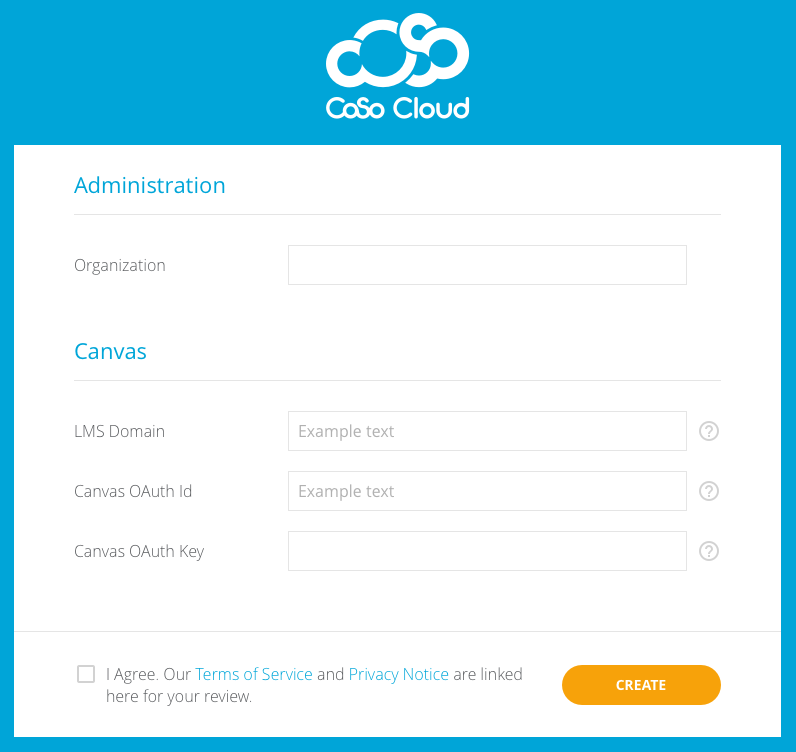
Administration section:
- Organization: Your company/organization name.
Canvas section:
- Domain: Your Canvas URL.
- Consumer Secret: Your Canvas OAuth ID from the steps above.
- Consumer Key: Your Canvas OAuth Key from the steps above.
Please take the time to read the Terms of Service and Privacy Policy and check the I Agree box.
Click Create.
Next Steps
You will receive an email from CoSo Cloud asking you to confirm your account:
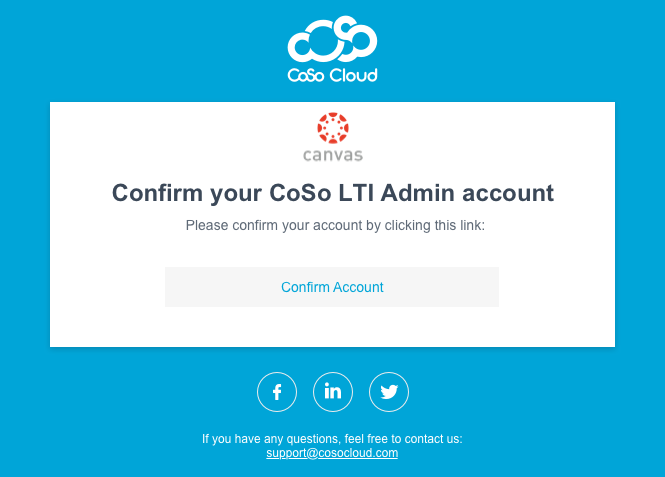
Click on the link in the email to confirm your account and log in to the CoSo Zoom LTI Admin Tool.
Once completed, you’ll receive a second email confirming activation.
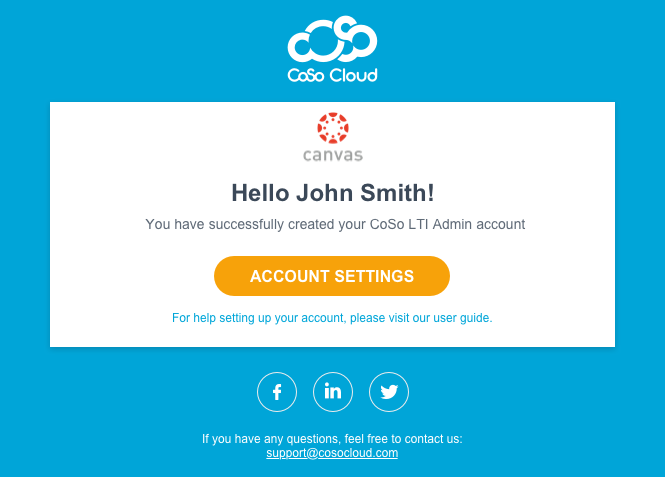
Click the Configuration button in the email to be taken to the CoSo Cloud LTI Admin app.
CoSo Cloud LTI Admin
In the LTI Admin Tool, you can:
- See your Canvas License.
- See your Consumer Key and Shared Secret.
- Enable and disable LTI settings (Secure Roster, Study Groups, Office Hours, and Kaltura).
- Create other non-admin company users (not required).
To continue the Marketplace installation:
- In the Zoom Admin tool, click the Canvas link to display the XML:

Copy the XML and put it aside in a text editor as it is required for the “Installing the LTI in Canvas” phase below.

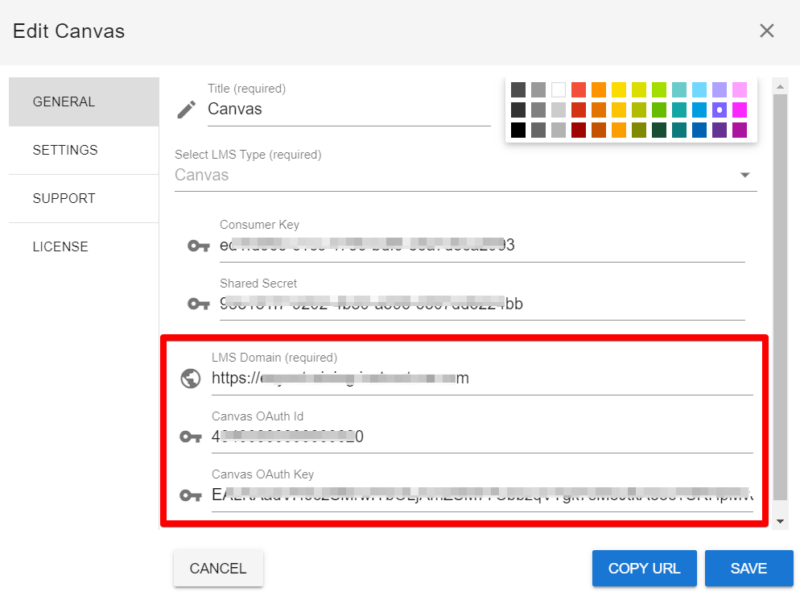
- In the Zoom Admin tool, click LMS and click the Edit icon:

- On the General tab, ensure your LMS Domain is correct and populate the Canvas OAuth ID and Canvas OAuth Key generated from the steps above:
Installing the LTI in Canvas
- Log in to Canvas.
- Click Admin and choose your account.
- Click Settings.
- Click Apps.
- Click View App Configuration.
- Click + App.
- Enter the following:
- Configuration Type: Choose Paste XML from the dropdown.
- Name: Zoom
- Consumer Key: Enter the provided Consumer Key.
- Shared Secret: Enter the provided Shared Secret.
- XML Configuration: Paste the XML copied from the CoSo Cloud LTI Admin app in the above steps.
- Click Submit.
The LTI will be accessible in all courses by clicking on the Zoom link.
Alternatively, you can install the LTI course by course. Rather than set it up in the Canvas Admin section, simply go to a course and click Settings. Then follow steps 5 through 8 above.