

LTI For Zoom – Study Groups
The Study Groups option should be activated on the Zoom Admin LMS license Settings page.
Teachers can create multiple Study Groups and Edit / Delete a student’s Study Groups regardless of whether they are participants in the meeting.
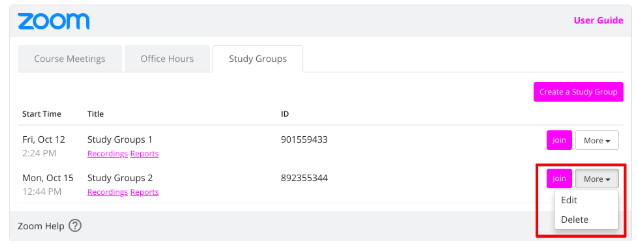
To create a Study Group meeting, click the Create a Study Groups button in the Study Group section.
Fill out the following form and click on the Next button:
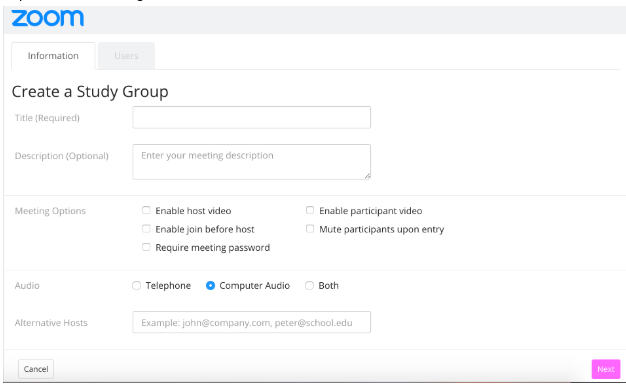
Add users manually by clicking Add/Remove buttons. Click on the Save button to complete the process.
Click on the Leave button if you want to delete the invitation to someone’s study group.
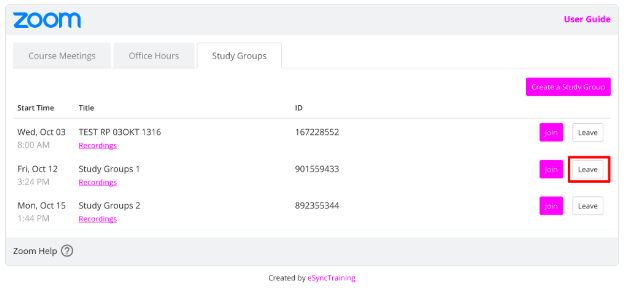
Students are allowed to create Study Groups in the Zoom LTI too. Teachers aren’t affected by this setting.
Note: To use Study Groups in Canvas, the Student role must include “Users – View primary email address,” which is not enabled for students by default.

See How do I manage the Permissions page? for instructions to manage these permissions.