

Before You Begin
To set up the Sakai LTI for Zoom, you will need the following permissions and information:
1: Administrator accounts for Zoom and Sakai.
2: Your Sakai URL.
Installation from Zoom Marketplace
Login to the Zoom Marketplace as an Admin.
Note: the account should be the Zoom PRO business account having an Admin role for an organization, otherwise user will get the following error:
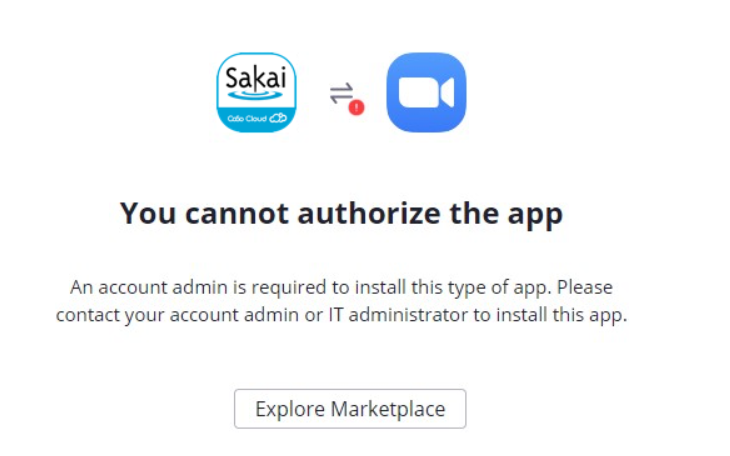
Click Install for the Sakai LTI in the Zoom Marketplace. Read through the access notification shown below, and click Authorize.

Fill out the following form:

Administration section:
- Organization: Your company/organization name.
Sakai section:
- Domain: Your Sakai URL.
- Admin Username: Your Sakai Admin username.
- Admin Password: Your Sakai Admin password.
Please take the time to read the Terms of Service and Privacy Policy and check the I Agree box.
Click Create.
You’ll see the following message:

Next Steps
You will receive an email from CoSo informing you that your account has been created.
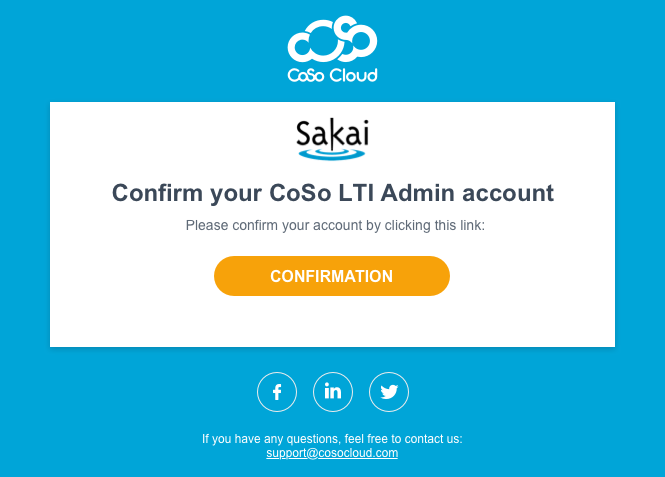
Click on the Confirmation button in the email to activate your CoSo account. You’ll receive a welcome email:

Click the Configuration button to log in to the CoSo LTI for Zoom Admin pages.
CoSo Cloud LTI Admin
In the LTI Admin Tool, you can:
- See your Canvas License.
- See your Consumer Key and Shared Secret.
- Enable and disable LTI settings (Secure Roster, Study Groups, Office Hours, and Kaltura).
- Create other non-admin company users (not required).
To continue the Marketplace installation, click the LMSs tab:

- Copy the Consumer Key and Consumer Secret and put them aside (they will be required for the installation in Sakai).
- Click the Sakai link to display the Sakai URL
The Sakai URL will look like this: <url> https://zoom.cosocloud.com/lti/sakai-login </url>
Copy the URL (without the <url> tags) and put it aside as it’s required for the installation, along with the Consumer Key and Shared Secret.
Installing the LTI into Sakai
Login to Sakai as an Administrator, select Sites and then click on the Site where you wish to install the LTI.

On the left side navigation, select Site Info and click on the External Tools button.

Click on the INSTALLED TOOLS button and select the Install LTI Tool link.
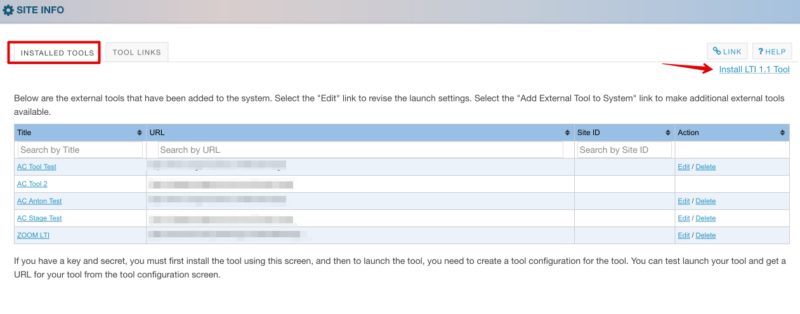
Tool Title: Zoom LTI (or whatever you wish to label)
For Allow button text to be changed: Do not allow
For Button Text: Zoom LTI (or whatever you wish to label)
For Allow button text to be changed: Allow

Fill in all mandatory fields:
- Launch URL: The XML URL from the steps above.
- Launch Key: Consumer key from the steps above.
- Launch Secret: Shared Secret from the steps above.
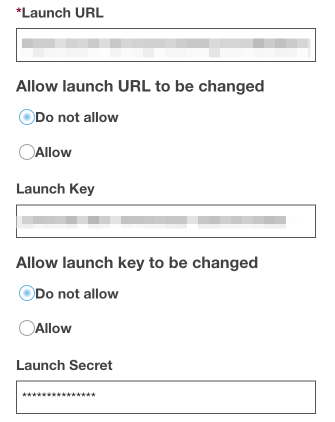
Enable/check the following Privacy Settings and click on the Save button:

Click the Site Info button and click the Manage Tools tab:

Select Zoom LTI from the list and click Continue.
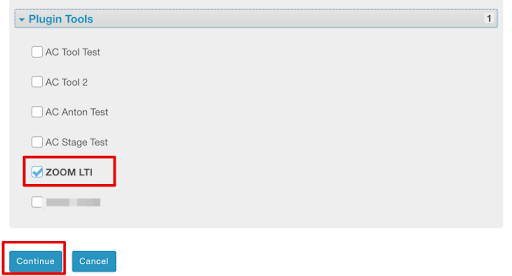
Click the Finish button in the Confirmation window.
