


Before you begin
To set up the Connector for SAP SuccessFactors, you will need the following permissions:
Zoom
1: Your Zoom account should be the following: type=Licensed; role=Admin
2: Your Zoom account should not be registered in the Coso Zoom Admin previously.
SuccessFactors
1: Administrator account for SuccessFactors.
Note: If you’re installing the Connector from the SAP Marketplace, please follow the normal procedure for acquiring an app. Once complete, please skip to the CoSo Administration section of the guide below.
Zoom Marketplace
1. Open https://marketplace.zoom.us
2: Sign in with your Zoom credentials.
3. Find the Connector for SAP SuccessFactors and click Install.
You’ll see the following Authorization screen:
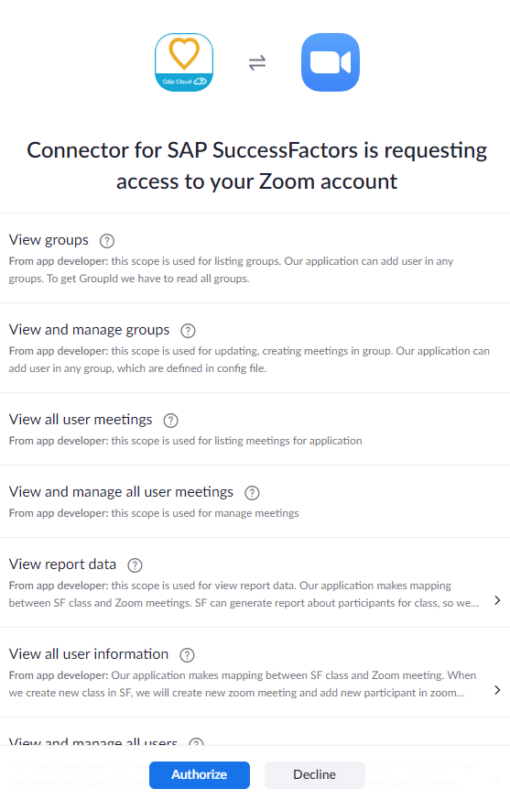
4. Click Authorize.
5. Provide Organization name and Accept Terms of Service and Privacy Policy:

6: Click CREATE.
You’ll see the following screen:
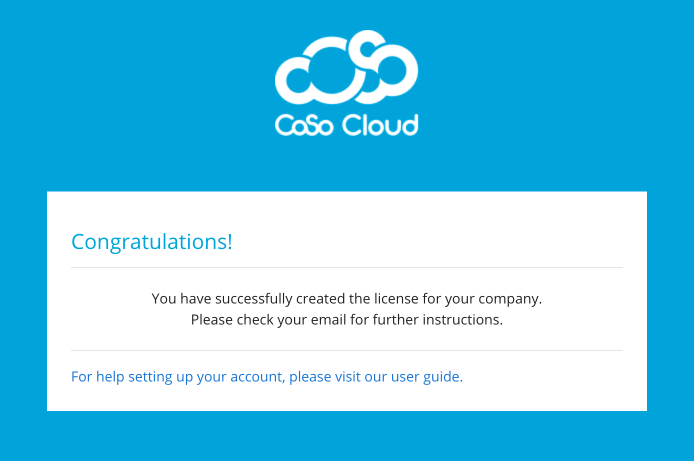
You’ll receive two emails.
1: Welcome to CoSo. This email is informational and requires no action.
2: Account activation email. You’ll need to click on the Confirm Account link in the email to create your CoSo Admin account.
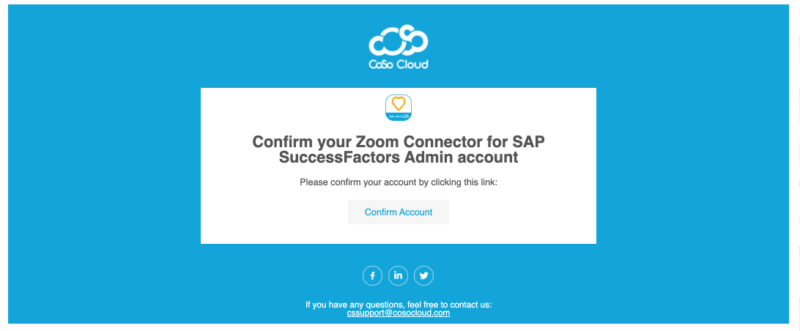
The activation page will open in a web browser, and you’ll be asked to create a password:

3: Once your account has been confirmed and activated, you’ll receive a confirmation email with a link to your Account Settings.
CoSo Administration
Once you’re logged in to the CoSo Administration site, you’ll need to copy the XML Body for your connector in order to move forward with the installation in to SuccessFactors.
Click on the Edit icon for your LMS:

Click XML BODY and then COPY XML:
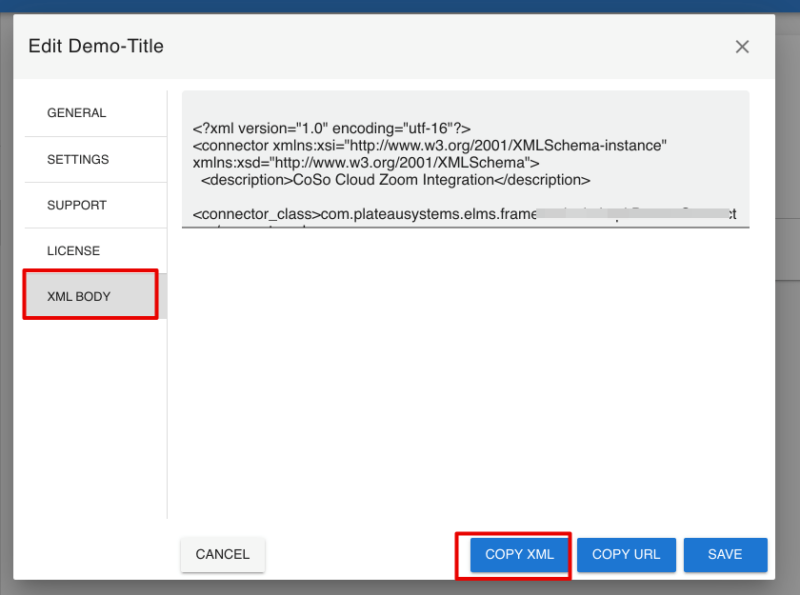
Past this into a Notepad and save it for the next steps
Installing the СoSo LMS Connector into SuccessFactors
1: Log in to SuccessFactors
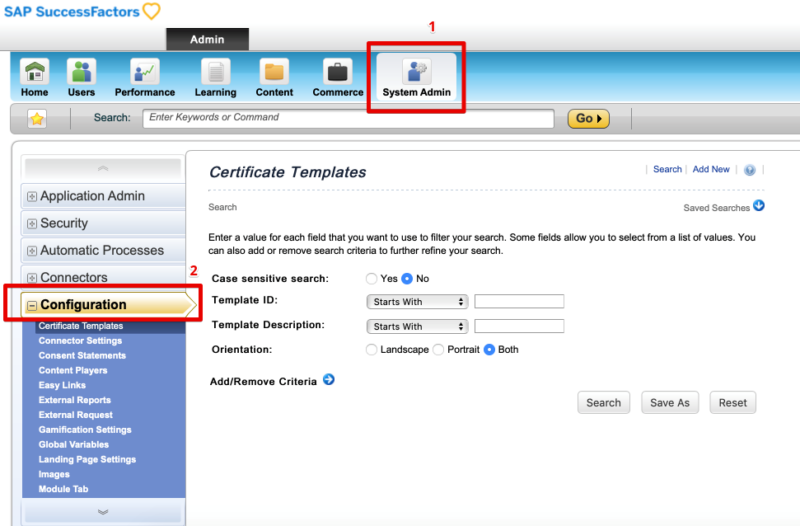
2: Navigate to System Admin->Configuration:
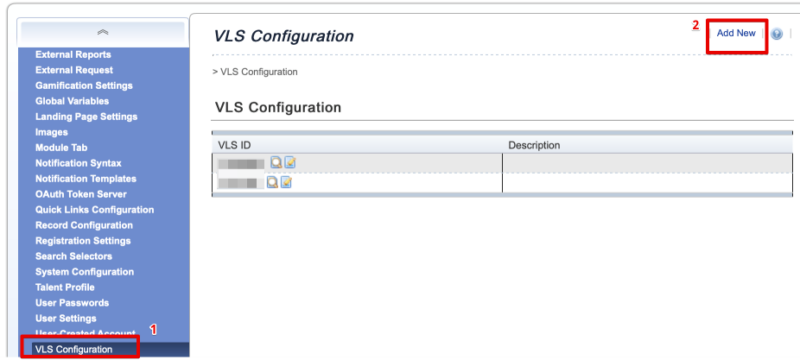
3: Click on VLS Configuration.
4: Click Add New:
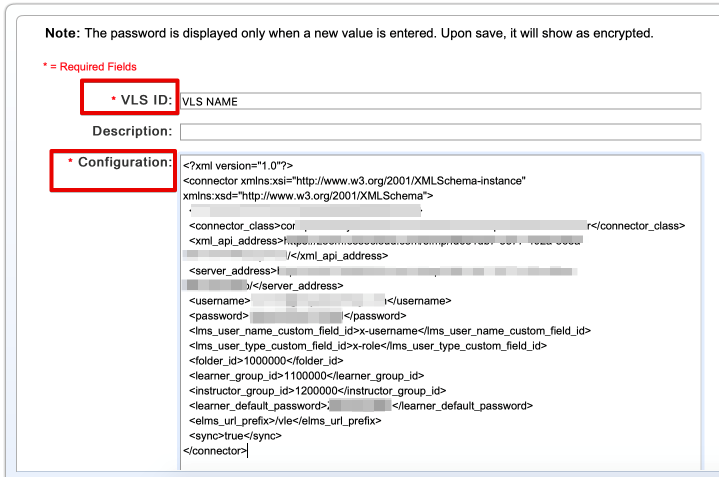
4: Enter a VLS ID and paste in the XML COPY from the CoSo Administration steps above.
4: Click Save.
CoSo LMS Connector Integration
1: In a Course click Learning > Items> Add New
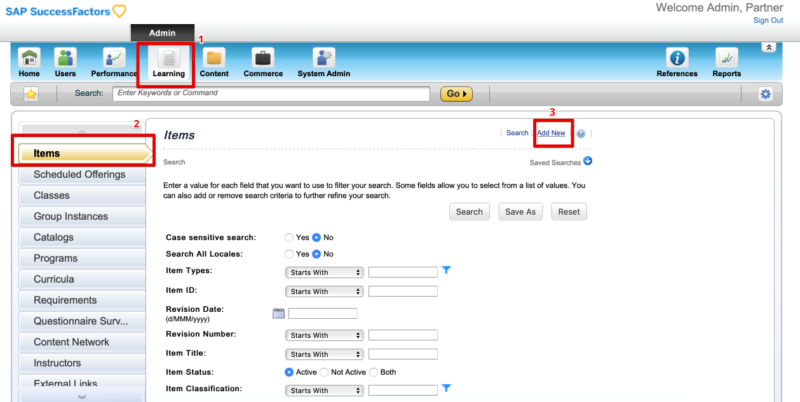
2: Select Scheduled and Online:

3: Add New Item
– Item Type: Select Virtual
– ID: Enter your ID
– Title: Enter your title

The new Scheduled Offering with VLS settings
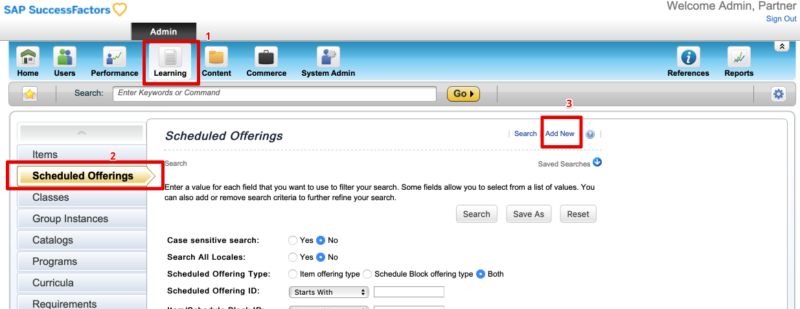
1: Open Learning
2: Click Scheduled Offerings
3: Click Add New
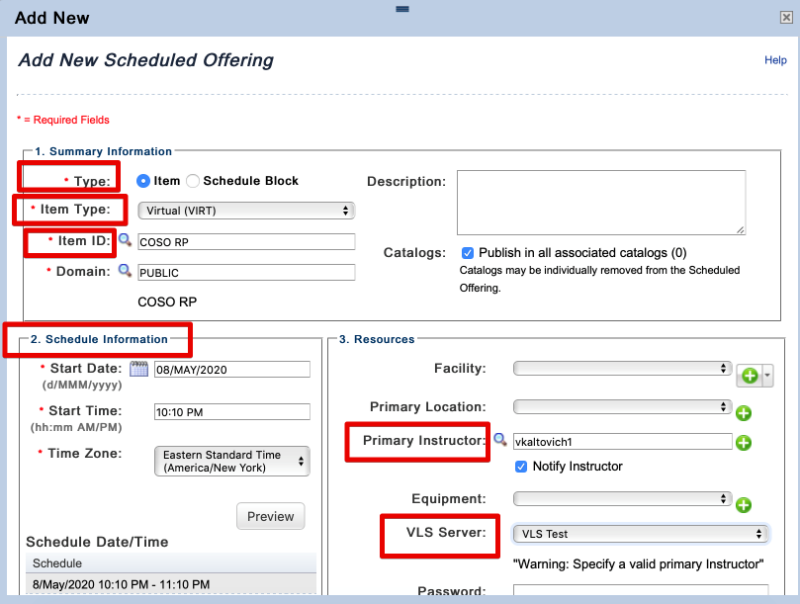
Enter the following information:
– Type: Item
– Item Type: Virtual (VIRT)
– Item ID: Your Course (or search for a course)
– Enter Start Date/Time (ensure the Start date and time is not in the past)
– Select Primary Instructor (search for instructor associated with the VLS Server)
– Select VLS Server
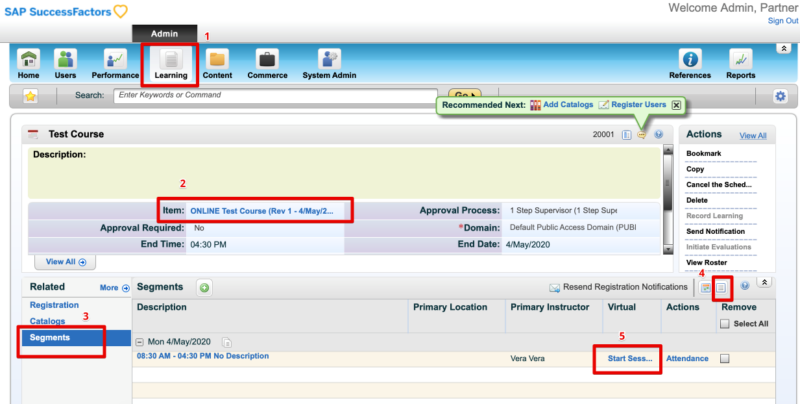
4: Open the Segment and click Start Session(VLS Event):
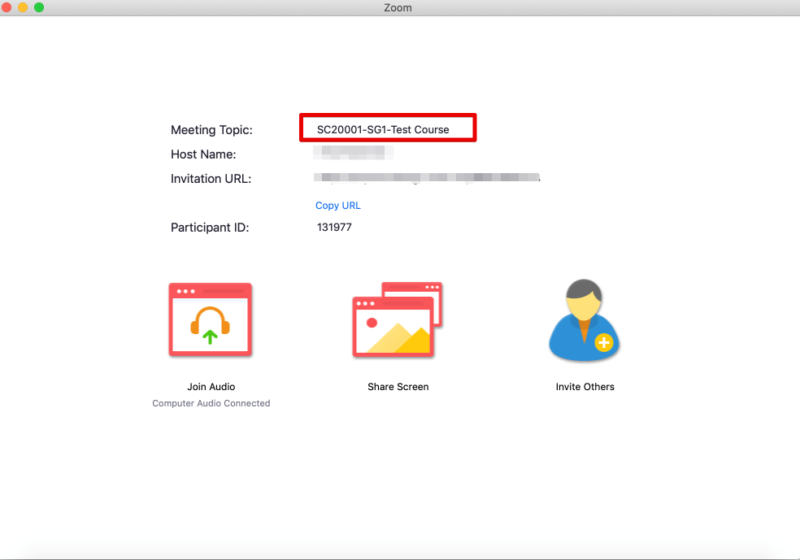
5: The VLS Event will be opened in a Zoom Meeting:
Uninstalling the Connector for SAP SuccessFactors
1. log in to your Zoom account and navigate to the Zoom Marketplace.
2. Search for Connector for SAP SuccessFactors and click the app or navigate to your installed apps via Manage > Installed Apps.
3. Click Uninstall next to Connector for SAP SuccessFactors.
4. Confirm the dialogue and click Uninstall.