

LTI For Zoom: Course Meeting Creation
This Document covers teachers’ general workflow when creating new meetings in Zoom LTI.
- In a Course, click on the Zoom link in the Course navigation menu.
- From the Course Meeting list, click Schedule a New Meeting.
- Populate the following form:

Meeting Options
Topic: Choose a topic/name for your meeting.
Description: Enter your meeting description (optional).
When: Select a date and time for your meeting.
Duration: Choose the approximate duration of the meeting. Note that this is only for scheduling purposes. The meeting will not end after this length of time.
Enable Class Roster Security: While in the meeting room, hosts can invite and handle people to attend a meeting. If Enable Class Roster Security option is checked, the following events will be flagged:
- Users (except Host) who are in the People section have emails, and their accounts are associated with the Zoom Administration Account, will receive the invitation letters and will be automatically approved by Host.
- Users who are in the People section, but their accounts are not associated with the Zoom Administration Account, will not get an access to attend the meeting without Host’s approval. To become a meeting participant, user should perform the registration into the meeting, then he can be approved by Host manually. In addition, the following use-case will be also possible: if the user has been registered in Zoom after the meeting was created, and after that Host edited&saved any details of the meeting, the user will be automatically approved to the meeting since his account has already been associated with the Zoom account.
- Technically, Enable Class Roster Security option means that Zoom’s registration is required and Manual Approval has been ‘received’ in advance:
Enable Participant Video: Choose if you would like the participants’ videos on or off when joining the meeting. Even if you choose off, the participants will have the option to start their video.
Mute Participants Upon Entry: If join before host is not enabled, this will mute all participants as they join the meeting.
Require Meeting Password: You can select and input your meeting password here. Joining participants will be required to input this before joining your scheduled meeting.
Enable Join Before Host: Allow participants to join the meeting without you or before you join. The meeting will end after 40-minutes for Basic (free) subscribers.
Enable Host Video: Choose if you would like the host video on or off when joining the meeting. Even if you choose off, the host will have the option to start their video.
Audio Options: choose whether to allow users to call in via Telephone Only , VOIP Only (computer audio), both, or 3rd Party Audio (if enabled for your account).
Alternative Hosts: Enter the email address of another Zoom user with a Pro license on your account to allow them to start the meeting in your absence.
Once the form is completed, click Save to create your Zoom meeting.
Your Zoom Course Meeting will appear in the main Course Meetings list:
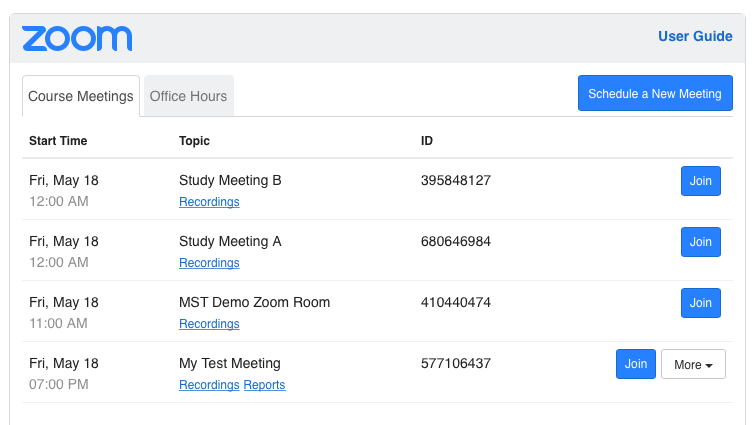
To join the meeting, simply click the Join button and the system will launch Zoom.