
LTI For Zoom – Office Hours
This Document covers the general workflow followed to create Office Hours meetings. This feature allows Teachers to create an “Office Hours” meeting that can be reused across multiple courses in Canvas.
Once an Office Hours meeting is created, it’s available for all Courses the Teacher is assigned. If the Teacher creates an Office Hours meeting in another Course, it will be mapped to the same meeting that was created before.
Create the Office Hours Meeting
- In a Course, click on the Zoom link in the Course navigation menu.
- Click on the Office Hours tab.
- Click Add a New Office Hours
- Populate the following form:
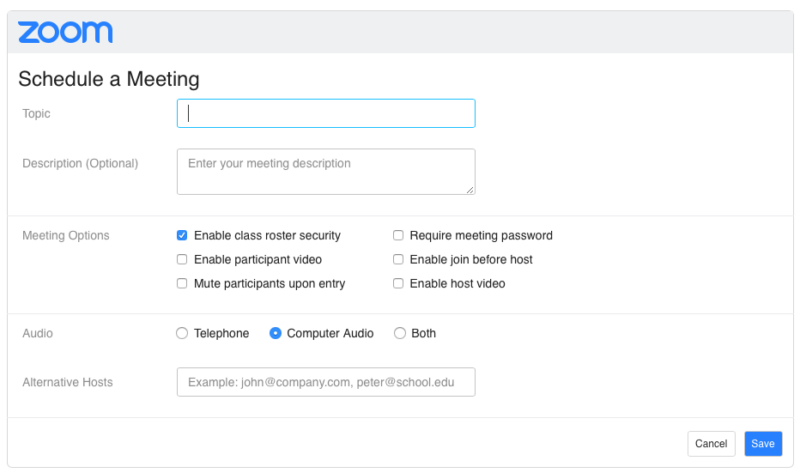
- Topic: Enter a Meeting topic/title
- Description: Enter a Meeting description. This is optional.
- Meeting Options: Select the Zoom Meeting options you wish to enable.
- Audio: Choose your Zoom Meeting audio preference
- Alternative Hosts: Enter the emails (separated by commas) of people you would like to join the meeting as Alternate Hosts.
- Click Save.
Your Office Hours Meeting will be ready. To launch the meeting, Students simply click the Join button.

*NOTE: One common Office Hours meeting is created for all courses. When a user creates an Office Hours meeting in a different course, it would be mapped to the same meeting that was created before.
All students in the course will have access to the Office Hours meeting.
Office Hours Slots
Once the Office Hours meeting is created, the teacher can generate slots and manage the session calendar.
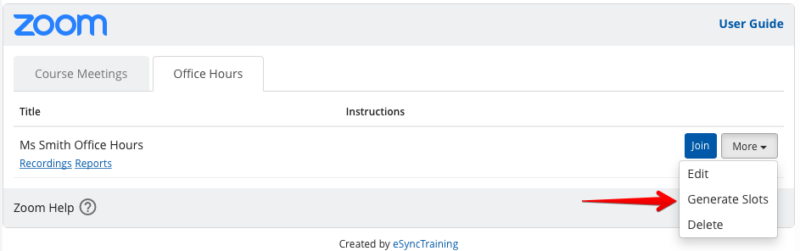
Click More > Generate Slots:
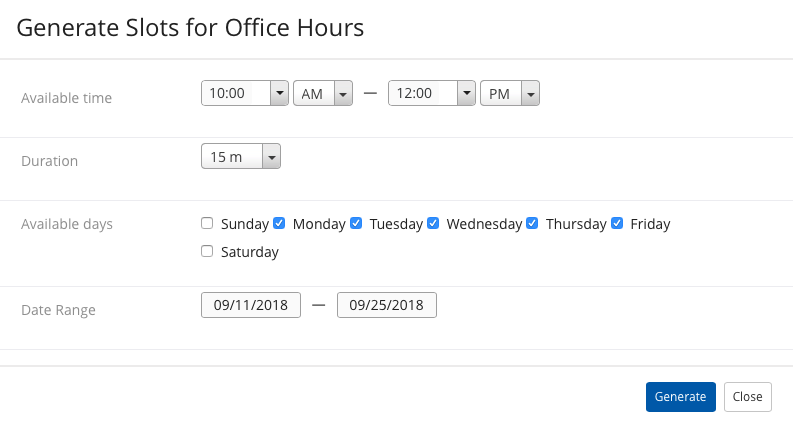
You can then set up your Available time, duration, Available days, and Date Range.
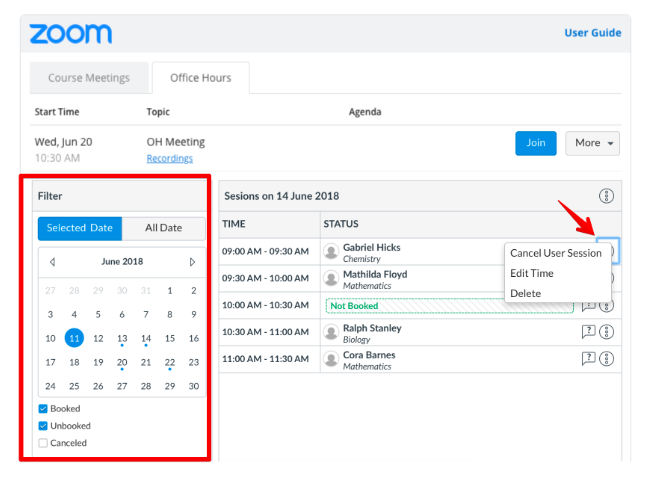
Once the Slots are generated, you can:
- Review the calendar and Manage free and booked slots.
- Generate More Slots.
- Cancel User Session (in case the student has no access to his dashboard to cancel it by himself).
- Delete slot/all slots (in case the Teacher is Not Available for any reason).
- Reschedule the session (to any free date/time).