
Issue: After enabling and employing the “Meeting Reuse” feature in the LMS, students enrolled in the new meeting lose complete access to Adobe Connect
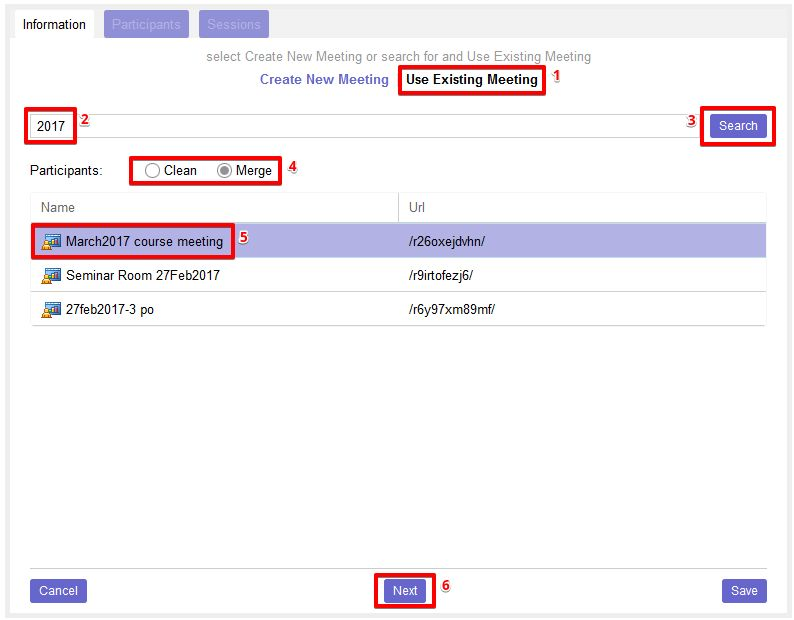
Solution: You must select the ‘Merge’ option to combine the previous and existing student lists. Otherwise, the original meeting will overwrite the list of students added to the new meeting.
1) Open the Adobe Connect LTI and click on the Add Meeting button, open the Use Existing Meeting tab and search for the required meeting.
2) Select the required meeting from the list, and choose how you want to add participants:
– Clean option will overwrite existing participants in the meeting with users enrolled in the current course
– Merge option will add users enrolled in the current course to existing participants in the meeting
3) Click on the Next button.
4) Review the participants, and then click Next.
5) Generate the sessions and click the Save button to complete the process.