


CoSo Cloud YouTube Video Player for Adobe Connect User Guide
Thank you for taking an interest in the CoSo Cloud YouTube Video Player.
What’s New?
We are proud to announce that the new build of the CoSo Cloud YouTube Video Player (version 4.1.0.64) is now compatible with the HTML5 meeting experience in Adobe Connect 11.
*** System Requirements – Browser Compatibility
a. Microsoft Edge
– Latest version (Windows)
– Previous versions, such as Internet Explorer, will encounter compatibility issues
b. Firefox (Windows, Mac)
c. Chrome (Windows, Mac) ‘
d. Safari (Mac)
*** System Requirements – Mobile OS Compatibility
The CoSo Cloud YouTube player does work on mobile browsers at the current time.
Preparing Adobe Connect
To begin, you must enable custom pods for the HTML5 client in order for the CoSo Cloud YouTube Video Player to work for users logged in via the HTML5 client.
- Log into Adobe Connect as an Administrator.
- Navigate to Administration > Compliance and Control > HTML Client Settings.
- Ensure that Enable Custom Pod in HTML Client is checked.
- Click Save.

You must also ensure that the ‘Enable Standard View’ option has been selected
- Navigate to Administration > Meetings > My Meetings
- Select your desired meeting from the ‘User Meetings’ list
- Ensure that the ‘Standard View’ radio button is selected.
- Place a checkmark in the ‘Enable Standard View’ checkbox.
- Click Save to finish.

Loading the CoSo Clould YouTube Video Player
Navigate to your Adobe Connect page, input your credentials and login.
When given the option, choose ‘Open in browser’ to continue
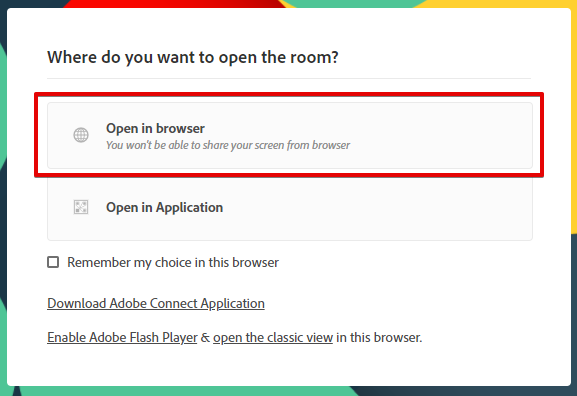
The CoSo Cloud YouTube Video Player is installed by uploading it into a Connect Meeting Share Pod.
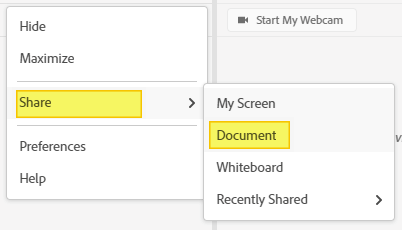
There are two ways to do this. In the Share pod, click the ellipsis (3 dots) on the top right of the screen.
Navigate to ‘Share’ and then to ‘Document’ in the accompanying menu.
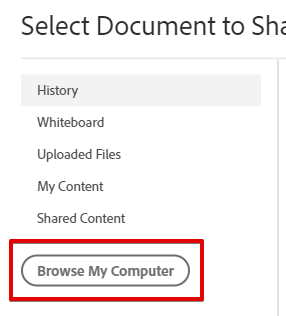
And then click ‘Browse My Computer’ to locate the downloaded zip file of the CoSo Cloud YouTube Video Player.
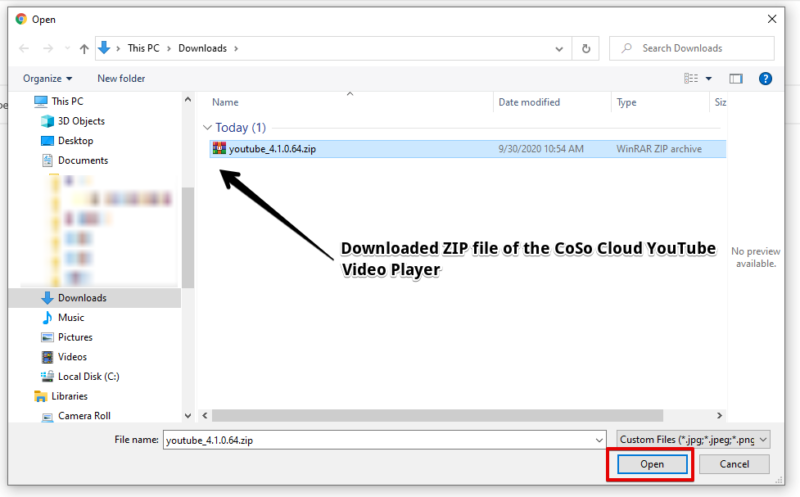
Once you have located the file, click on it once and then click on ‘Open’ to load it
OR
If you have opened/uploaded the file during a previous Adobe Connect session, then you can select ‘History’ in the left-hand menu and choose it from the list of History items on the right-hand side.

*** NOTE: Ensure you upload the full zip file. Do NOT extract or alter any files prior to uploading; doing so will break the CoSo Cloud YouTube Video Player’s functionality.
The pod will upload and convert, performing a fast license check. Upon which, once successfully loaded, the CoSo Cloud YouTube Video Player will be ready for use.
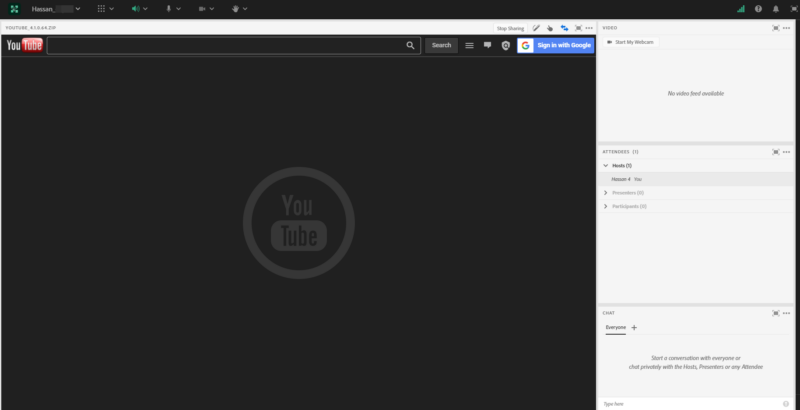
Loading from Adobe Connect Content
1: In Adobe Connect Central, upload the CoSo Cloud YouTube Video Player as new content.
2: In the Share pod, click the ellipsis (3 dots) on the top right of the screen. Navigate to ‘Share’ and then to ‘Document’ in the accompanying menu.
3: Choose My Content or Shared Content depending on where you shared the Pod. Select the CoSo Cloud YouTube Video Player from the list and click OK.

As previously, the pod will upload and convert, performing a fast license check. Upon which, once successfully loaded, the CoSo Cloud YouTube Video Player will be ready for use.
Using the CoSo Cloud YouTube Video Player Without a Google Account
Search by URL
In a browser, go to YouTube and find the video you wish to play in the meeting. Click the Share icon located just under the video title, and copy the share URL.
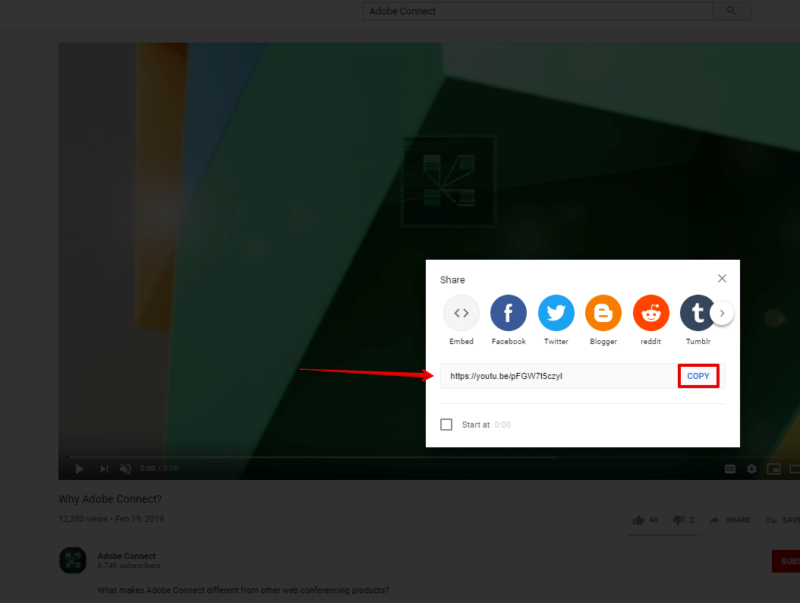
Paste the URL in the CoSo Cloud YouTube Video Player search field and click the Search button.

*** NOTE: When not logged into a Google account, YouTube videos must be listed as Public on YouTube in order for them to appear in the search.
Search by Keywords
Enter your search keywords into the CoSo Cloud YouTube Video Player search field and click the Search button. Much like the YouTube interface itself, you will be presented with a list of videos that match your keywords. If there are more results than can fit in the display area, the CoSo Cloud YouTube Video Player will paginate via the Previous and Next buttons.
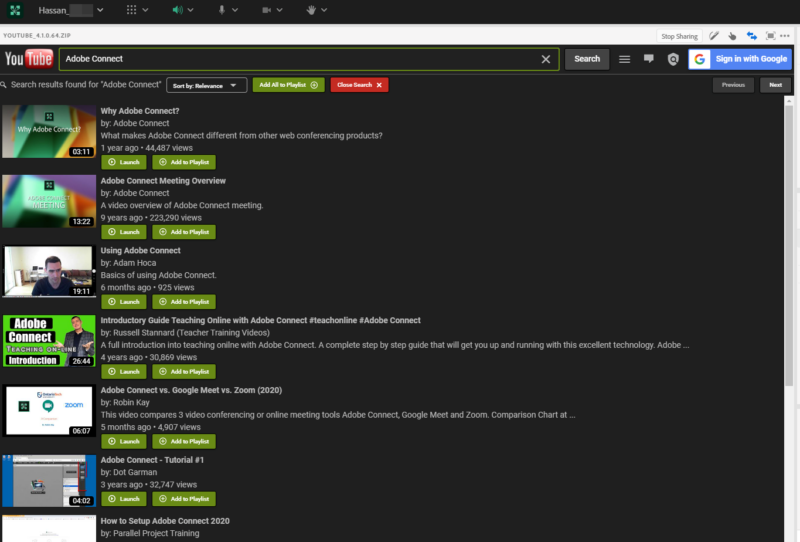
Search Result Options
Whether you search by URL or keywords, you will be provided with the following options once your results load:

- Sort By: Sort the result list by Relevance, Upload Date, View Count, or Rating. It can be ignored for URL search as only one video will appear due to the uniqueness of YouTube URLs.
- Add All To Playlist: Adds all videos in the search to the CoSo Cloud YouTube Video Player Playlist. It can be ignored for URL search as only one video will appear due to the uniqueness of YouTube URLs.
- Close Search: Closes the search results.
- Launch: Launches the video in a separate window.
- Add to Playlist: Adds the video to the Playlist.
Using the CoSo Cloud YouTube Video Player With A Google Account.
Logging In
Logging into your Google account allows you to load your YouTube playlists, Liked videos, and videos you’ve flagged to watch later.
* Note that you cannot view videos marked as Private or Unlisted. This feature request is being looked into for a future update.
To login to your Google account, click the ‘Sign in with Google’ button

You will be directed away from the meeting and taken to the Google accounts sign-in page. Log in with your Google credentials (or click on the account you wish to use and follow the instructions to log in).

When prompted, click ‘Allow’.
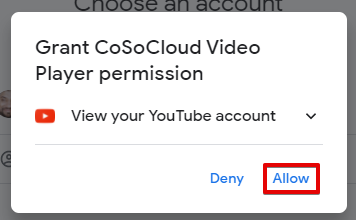
You will be taken to a second confirmation prompt. Click on ‘Allow’ again
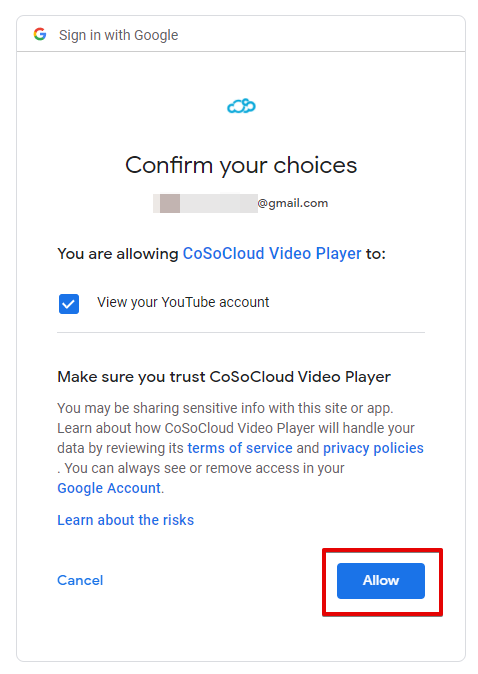
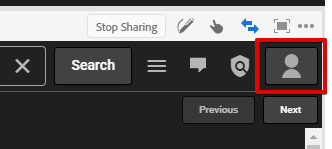
This will redirect you back to the Adobe Connect screen. The lack of the ‘Sign in to your Google Account’ option is an indication that you have successfully logged in.
Logged In Features
When logged into your Google account, you’ll see your playlists displayed on the left side of the CoSo Cloud YouTube Video Player:
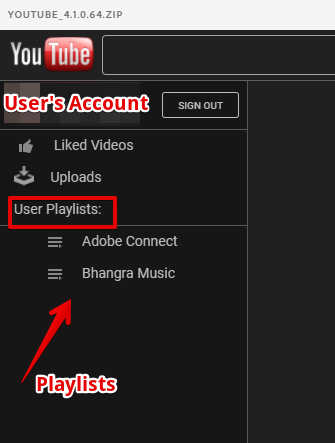
These will match up with your playlists in your YouTube account.
Clicking on a Playlist will load the videos in the main window.
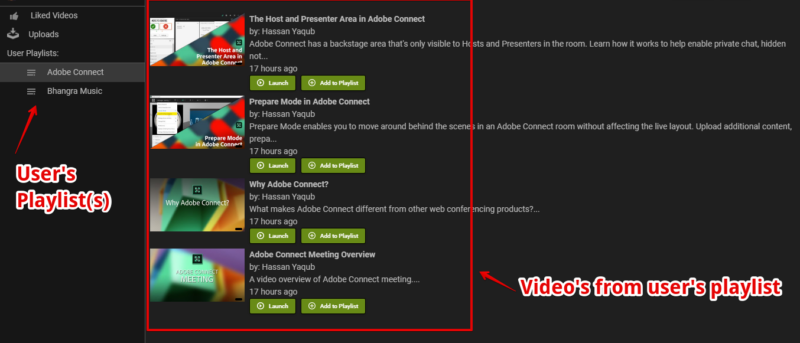
Likewise, clicking on Liked videos will load the lists into the main window.
Add All To Playlist – Adds all videos in the YouTube playlist to the CoSo Cloud YouTube Video Player’s Playlist.
Close – Closes the Account window (you can open this again by clicking the account button in the top right corner of the CoSo Cloud YouTube Video Player),
Play – Plays the video.
Add to Playlist – Adds the video to the CoSo Cloud YouTube Video Player Playlist.
Sign Out – Signs out of the Google account.
YouTube Video Player Features
When you click on ‘Add to Playlist’ while using the CoSo Cloud Video Player, the video will be added to the CoSo Cloud Video Player playlist.
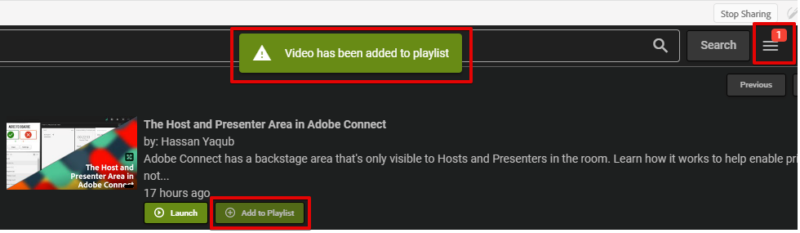
By default, videos added to the CoSo Cloud YouTube Video Player playlist will cache on the user’s local systems. You can see how far along the caching is in your meeting session by clicking on the Playlist button. The button will indicate the number of videos in the playlist.
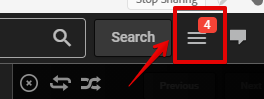
The icons across the top of the playlist section do the following (from left to right):

- Close Icon (x) – closes the playlist section.
- Repeat Icon (looping arrows) – It will repeat the playlist once the last video in the list completes. Click the icon to turn the repeat on and off.
- Shuffle Icon (shuffled arrows) – When clicked will randomize the order of the videos. Click the icon to turn the shuffle on and off.
- Count Icon – Displays the video currently being played. For example, if the first four videos are playing, the icon will read 1/4.
- Clear List Icon – Clicking this clears out the playlist.
Playing Videos
To play a video in the CoSo Cloud YouTube Video Player, either click the Launch button in the main section or click on the video you wish to play in the CoSo Cloud YouTube Video Player’s playlist. This works the same whether or not you’re logged into a Google account:

When playback is started, the video will play for both the ‘Host’ and the ‘Participant’
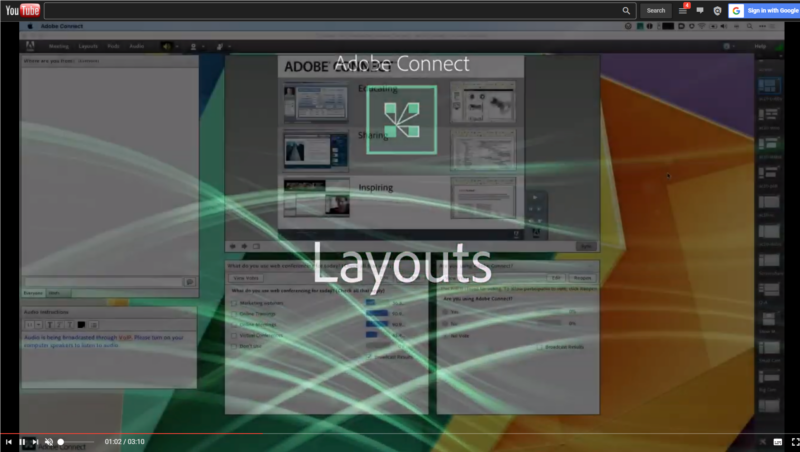
*** NOTE: HTML5 Meeting Participants will not see the Host’s Playlist; they will only see the current video that is playing.
Playback Controls
The CoSo Cloud YouTube Video Player provides the following controls for video playback for the ‘Host’ only:

At the top of the play bar is a time scrub. By dragging on the play head, you can move it forward or backward.
Under the play-bar, from left to right, are the following controls (from left to right)
- Previous button: Skips back to the previously played video in the playlist.
- Play/Pause button: Starts video playback and pauses video playback.
- Next button: Skips forward to the next video in the playlist.
- Volume slider: Raises/lowers the video’s volume level.
- Time display: Shows current time position in the video vs. full time of the video.
– Please do not hesitate to contact our customer support team at cssupport@cosocloud.com if you require further assistance.