

Installation of the LTI for Adobe Connect integration into Canvas is simple but requires some assistance from CoSo Cloud, which is done via a pre-scheduled meeting. This guide will provide you with the items you need to move forward with the installation and step-by-step instructions to install the LTI application within your Canvas instance.
Pre-installation Requirements
In order to install the LTI, you’ll need the following:
- An Adobe Connect login that has Administrator access*.
- Administrator access to Canvas.
* For the Adobe Connect login, we suggest creating a “dummy” user in Connect and assigning it to the Administrators group. Using your own, or someone else’s, login has the potential to break the connection between the LTI and Adobe Connect. For instance, if your password changes or the Connect Admin leaves the company and their login is disabled, the LTI will throw a connection error. Having a “dummy” Admin login can help solve this problem.
Setting up LTI for Adobe Connect in the ‘License Manager’ tool
The first part of setting up the LTI has to be done in CoSo Cloud’s License Manager Admin environment. A ‘License Manager’ user account will have been created for you by CoSo Cloud. Once setup is complete, this account will allow you to update your LTI settings and check in on your license.
This part of the setup will be done via a pre-scheduled meeting with CoSo Cloud. This will allow you to enter your Adobe Connect Admin credentials into the system via screen control without having to share them.
Once your credentials have been entered and the connection tests passed, you will be provided with a Consumer Key and Shared Secret and can move forward.
Installing the LTI in Canvas
System-Wide:
- Log into Canvas as an Administrator.
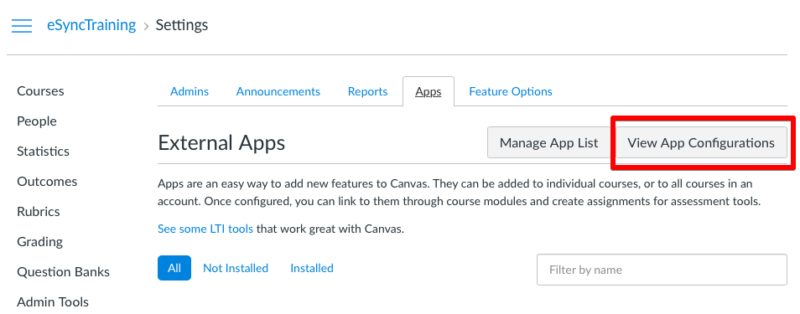
- Navigate to Admin > Settings > Apps
- Click View App Configurations:
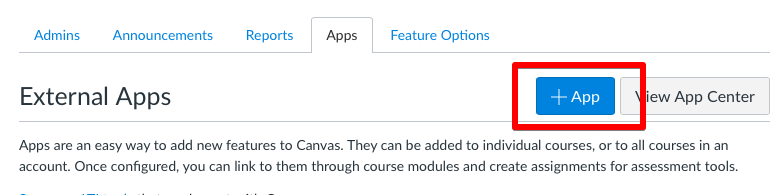
- Click + App
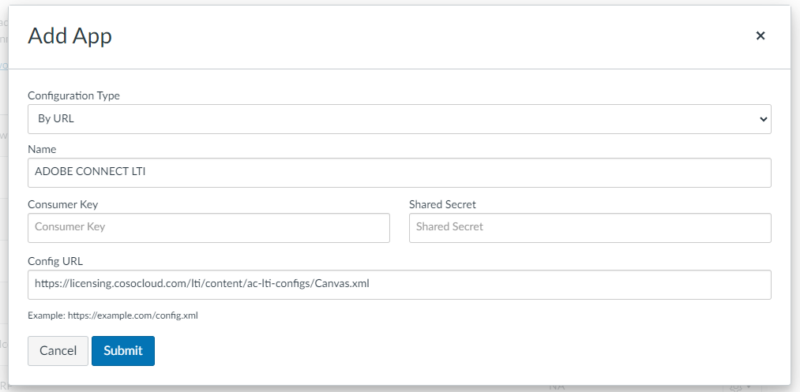
- For Configuration Type, choose By URL.
- Enter a Name (example: Adobe Connect LTI).
- Enter the Consumer Key and Shared Secret that you were provided.
- Enter the following for the Config URL: https://licensing.cosocloud.com/lti/content/ac-lti-configs/Canvas.xml
- Click Submit.
You should now see the LTI application in your App list.
Navigate to a Course, and the link to the LTI will be in the Course Menu:

** Note that the first user who launches the LTI must be a Canvas Administrator.
Course Level:
If you wish to set up the LTI on a course-by-course basis, navigate to a course, and select Settings > Apps > View App Configurations > +App, and follow steps 5-9 above.