
Issue: Students do not see a Join button for Course Meetings that they are enrolled in.
Possible Resolutions
Check the LMS Available Users list.
If there are no users in the list, then ensure that there are users enrolled in the LMS Course. The LTI syncs users with Adobe Connect; it does not bring Adobe Connect users into the LMS system.
Next up, check to see if the Students in question have a red dot beside their name:
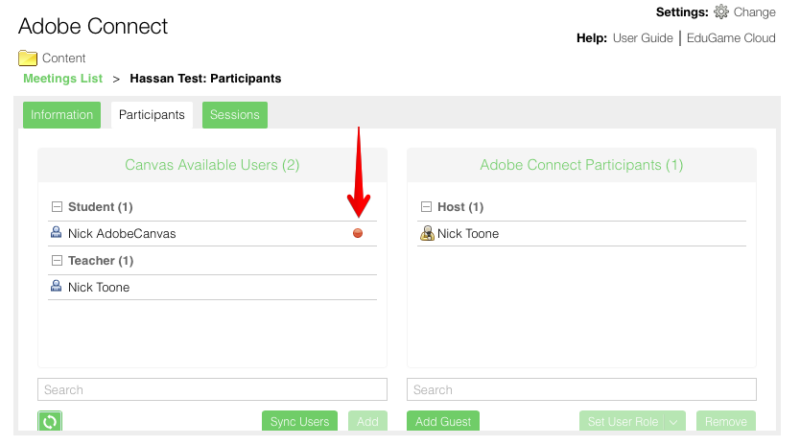
The red dot means that the user was not synced with Adobe Connect. There are a couple of reasons for this.
Adobe Connect Guest Account
The Student in question has a Guest account in Adobe Connect rather than a full account. Guest users are created by and used for Adobe Connect Events. Guest users cannot log in to Adobe Connect, but their email addresses are stored in the system. This causes two problems with the LTI:
- They will see no Join Button as the LTI does not recognize Guest users as they are only permitted to log in to Adobe Connect Events that they had previously registered for.
- The LTI cannot create a new account for them in Adobe Connect as the user’s email address is already in the system, and Adobe Connect does not allow duplicate emails if your Adobe Connect account is set to use emails as login.
You can check if the Student in question has a Guest account by logging into Adobe Connect as an Admin and going to Administration > Users & Groups > Manage Guests.
In this area, you see if the student has a Guest account in question and, if so, convert them to a full user:
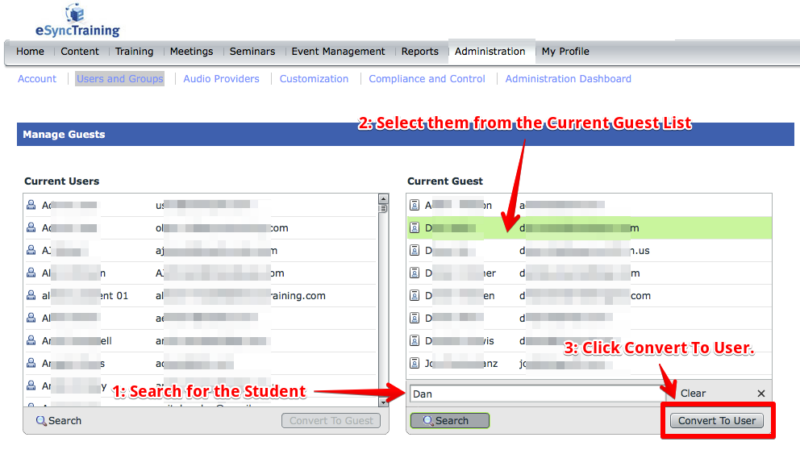
Once complete, you can sync the Participant list in the LTI. The system should pick up the full user account, and the student will then see the Join button.
No Email Address or other information in the LMS
If the users do not have email addresses (or full names), then the LTI will not sync as Adobe Connect requires at least the following to create a user:
- First Name
- Last Name
- Email address
If the user with the red dot does not have this information, simply edit their account to include the required info and then try Sync again.
Please log a ticket if you’re still seeing this issue after trying the above steps.